
Buyer - Categories/ Industries
To create a category/industry, navigate to Settings and click on Categories/ Industries.

You'll be taken to the view page, where you can see all the previously made industries. From here, you can create a new category/ industry as well as edit or disable an old one.
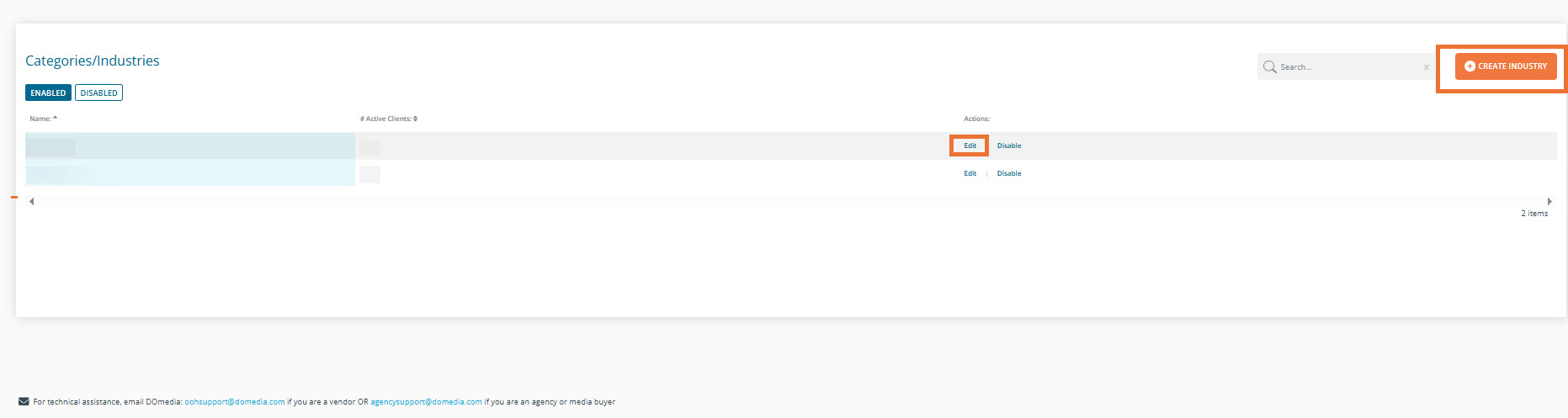
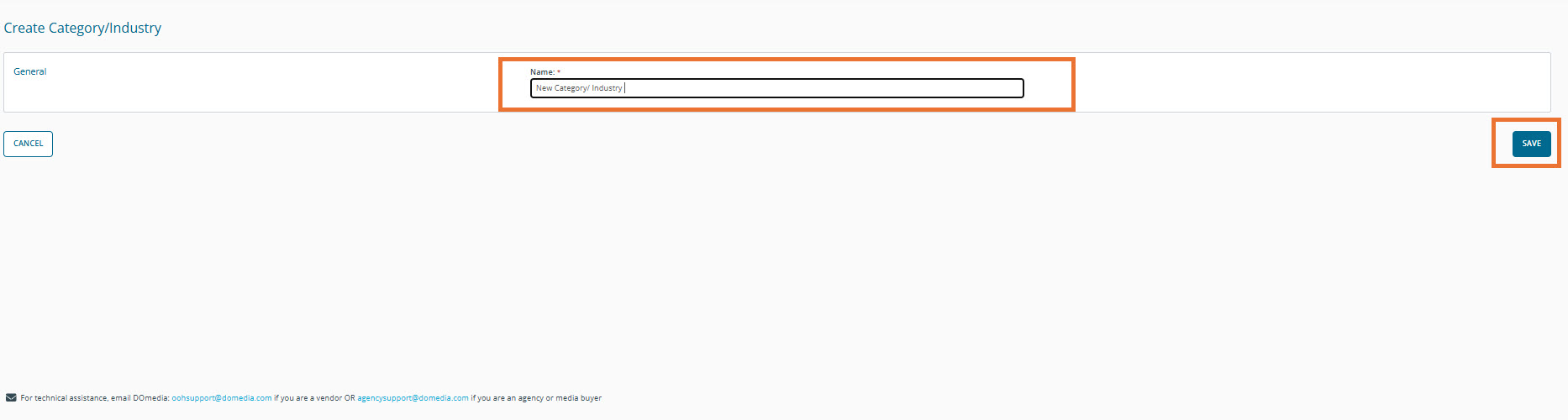
To create a new Industry, click the orange + Create Industry button. This will open a new page where you can add a name for your new Industry a name and save your new Industry.
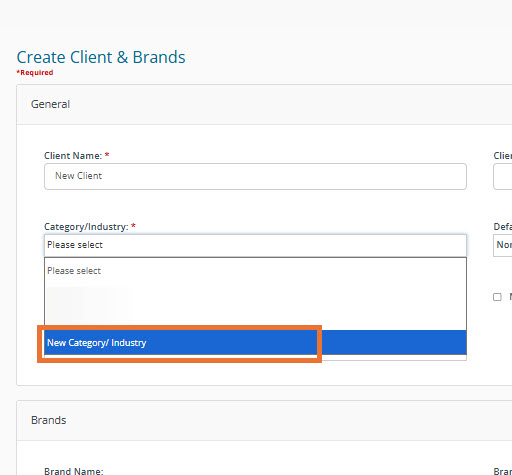
Once the Industry has been saved, you can add it to a client. Your Industry can be added when creating a new client or when editing an existing client. A drop list will show all of your enabled industries for you to choose from.
Once your Industry has been assigned to your client, it will automatically be added to any campaigns that are created for that client. No need to reselect your Industry.
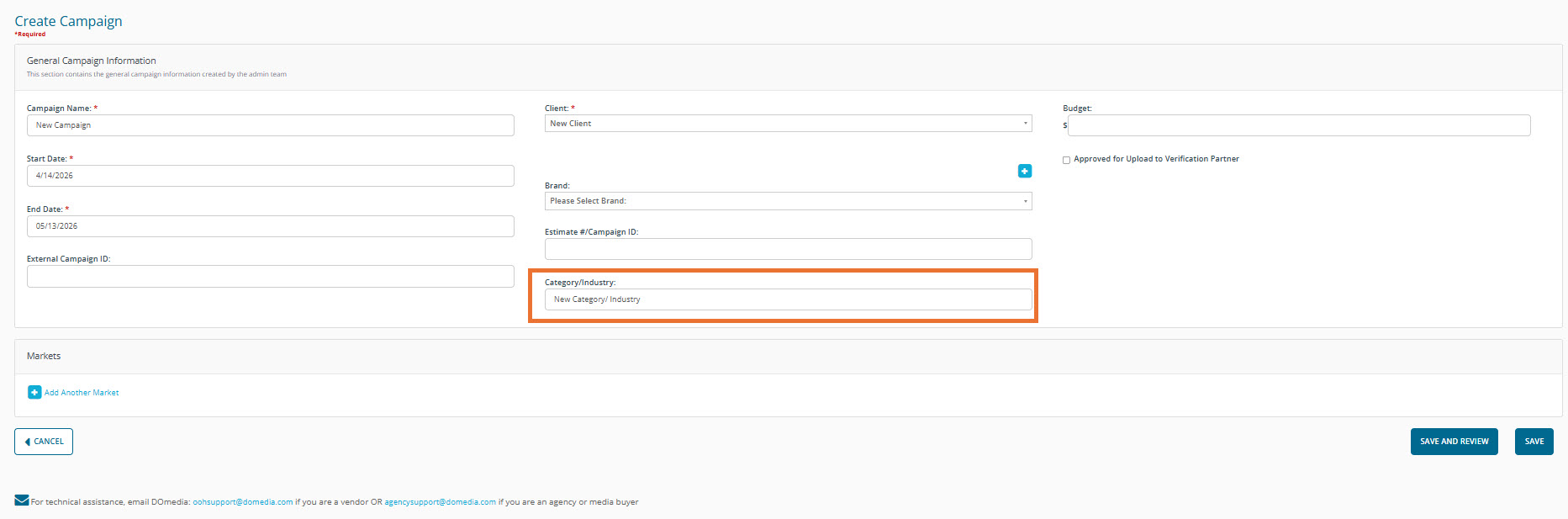
The Category/ Industry box remains editable on the campaign page, so any industry can be added or removed. Once an industry is added to a campaign, it will automatically pull into the RFP.
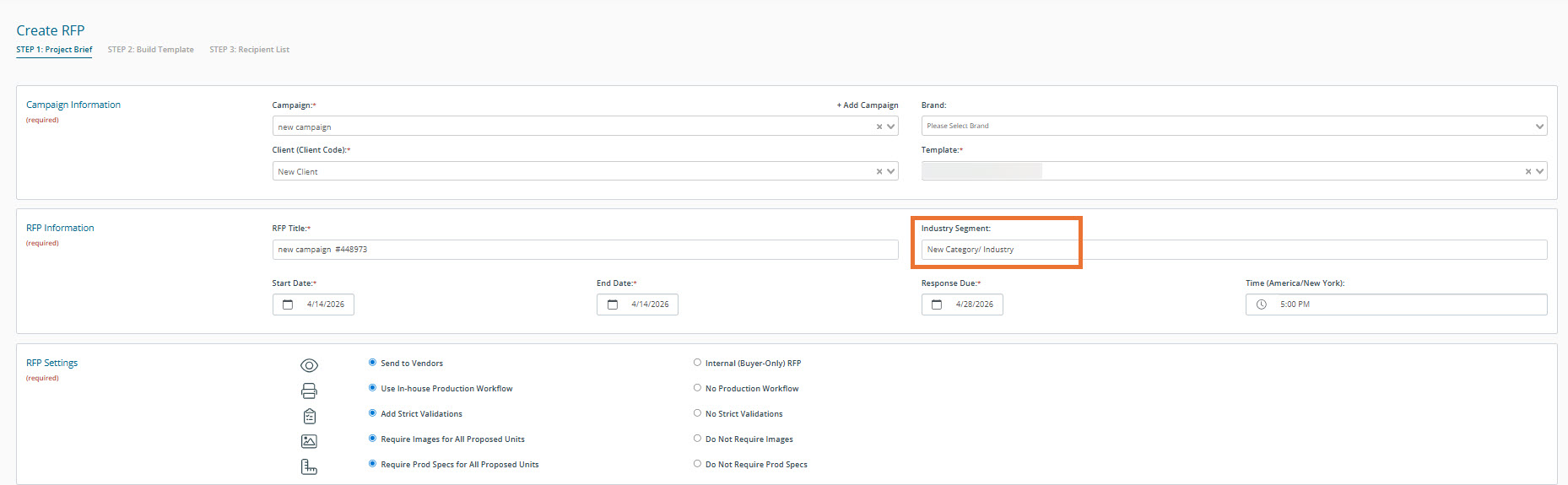
When creating an audience plan, an Industry will automatically be pulled in from the selected client.
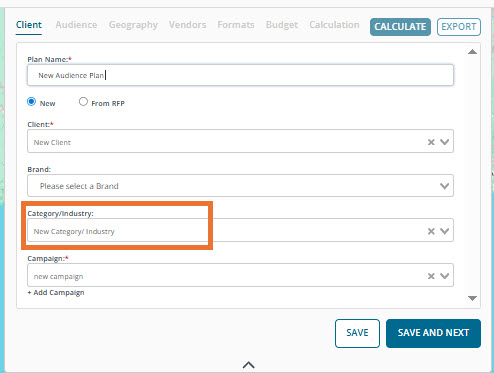
To learn more about audience plans, please check out our Audience Plan support articles.
Buyer: Audience Planning Tool: Overview
Buyer: Audience Planning Tool: Building Audiences
Buyer: Audience Planning Tool: Calculations Explained