Seller: How to Respond to Hold Requests
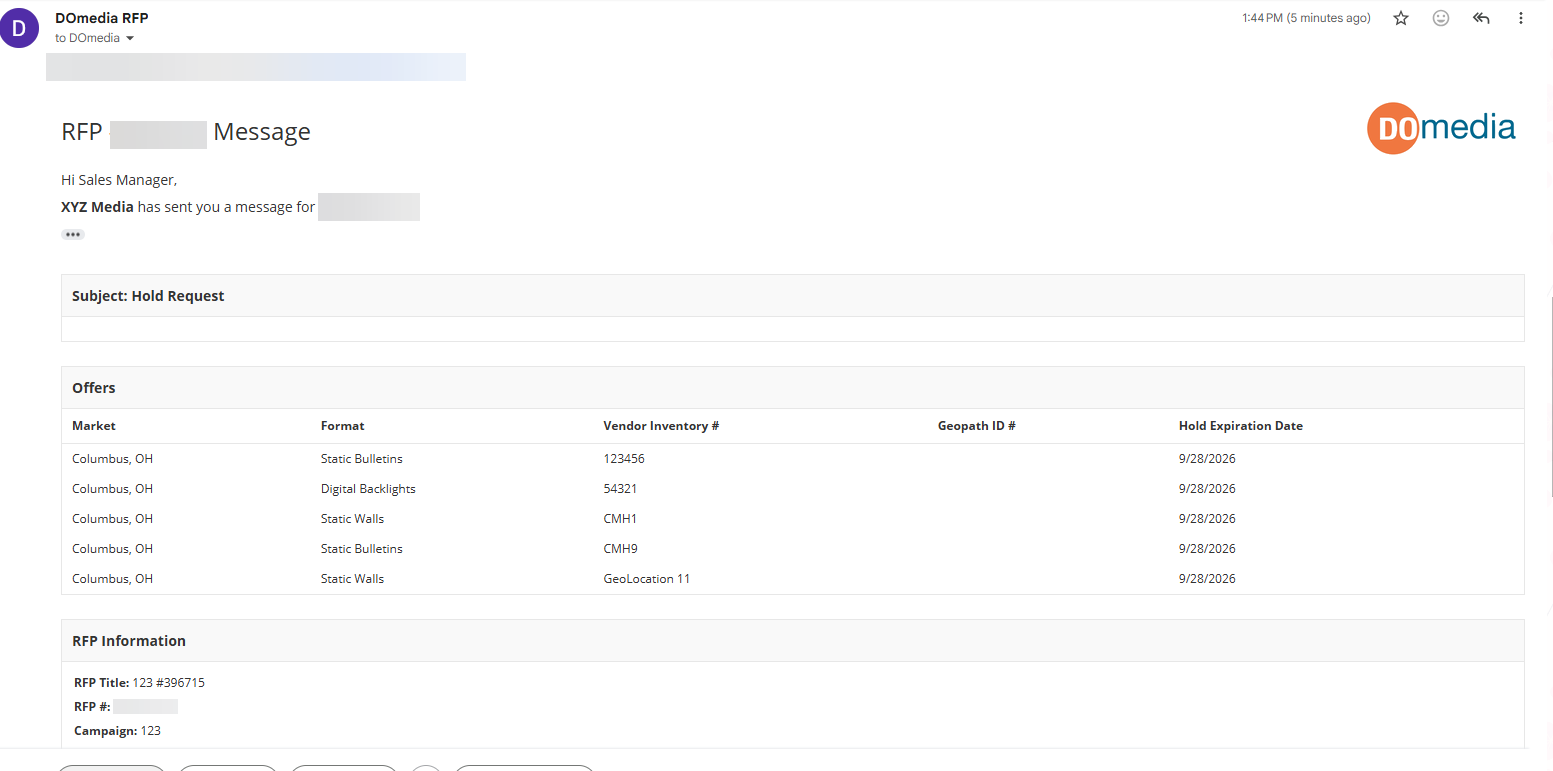
If an agency requests to place a hold on proposed inventory, you'll receive a Hold Request notification from DOmedia with details and a link to the RFP.
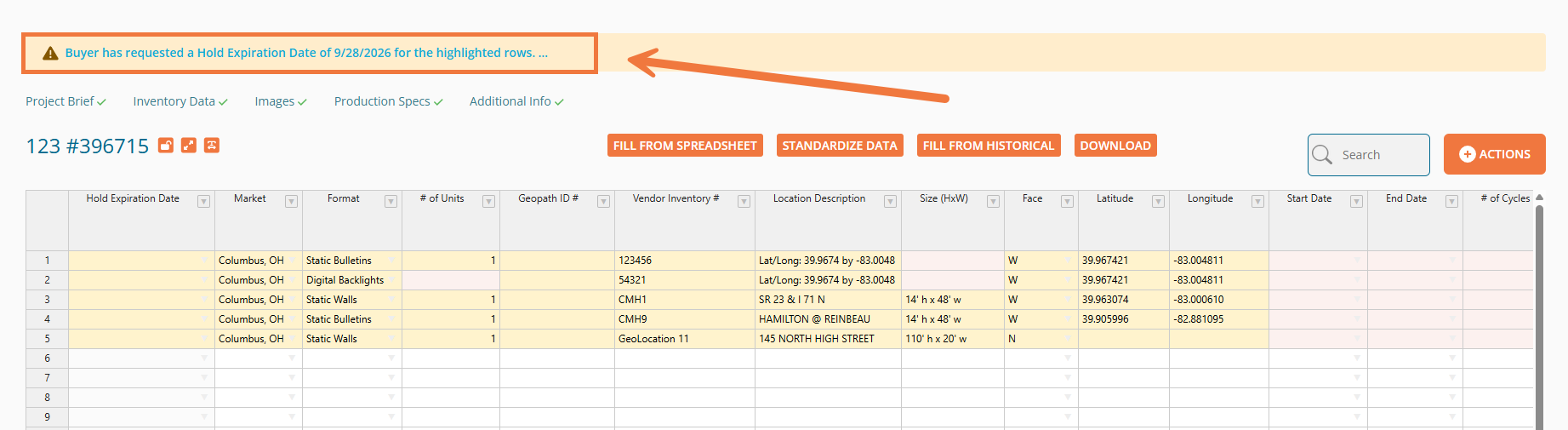
Within the RFP's Inventory sheet, a yellow banner with an interactive link is displayed to provide important updates pertaining to the request. Rows with holds requested are also highlighted yellow.
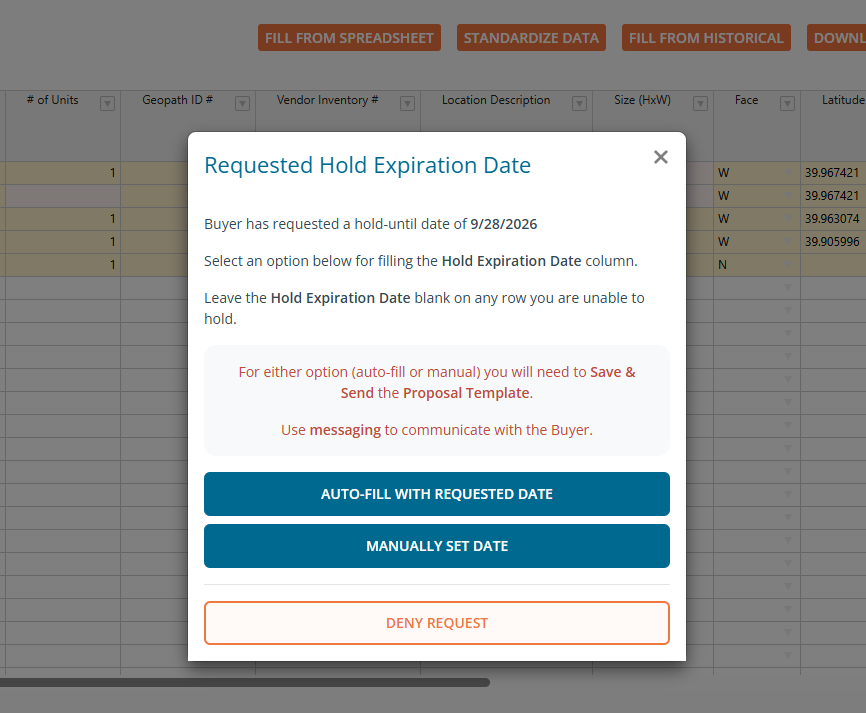
This link opens the following window with options for responding:
- Auto-fill with requested date. The Hold Expiration Date column will auto-fill with the agency's requested date.
- Manually set date. Set your own date instead of the requested date.
- Deny Request. Click the orange Deny Request button if you don't want to accept the hold.
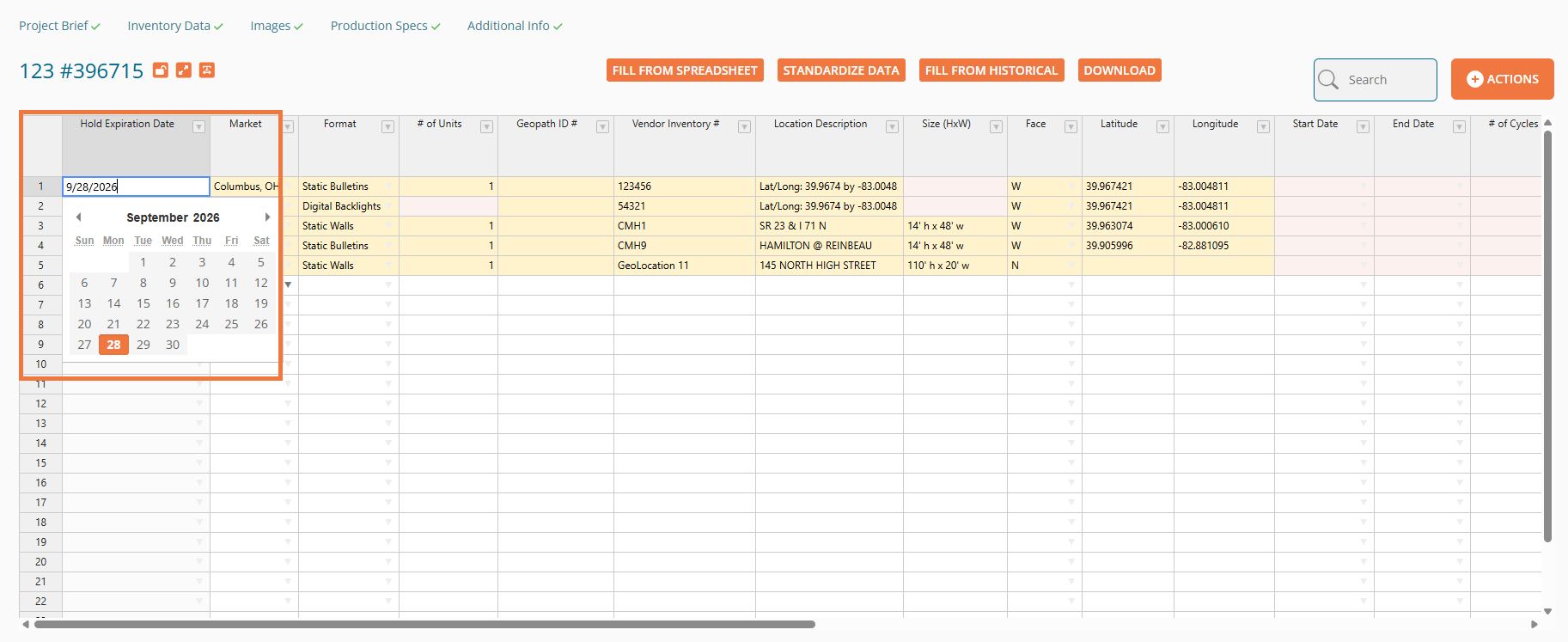
If you choose 'Manually Set Date', click the Hold Expiration Date cell to open a calendar and select your proposed hold expiration date.
Both options to 'Auto-Fill with Requested Date' and 'Manually Set Date' will allow you to adjust dates at the row level.
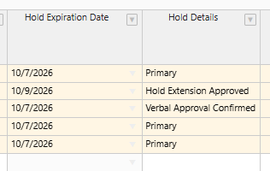
If the RFP template contains a column for 'Hold Details', this will auto-fill with the Hold Status, and fields within this column are editable.
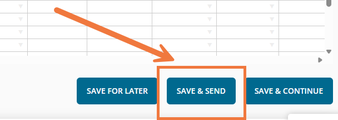
Once all your dates are selected, make sure to click Save and Send at the bottom of your proposal grid. This will notify the agency that you have submitted your response to their holds request.
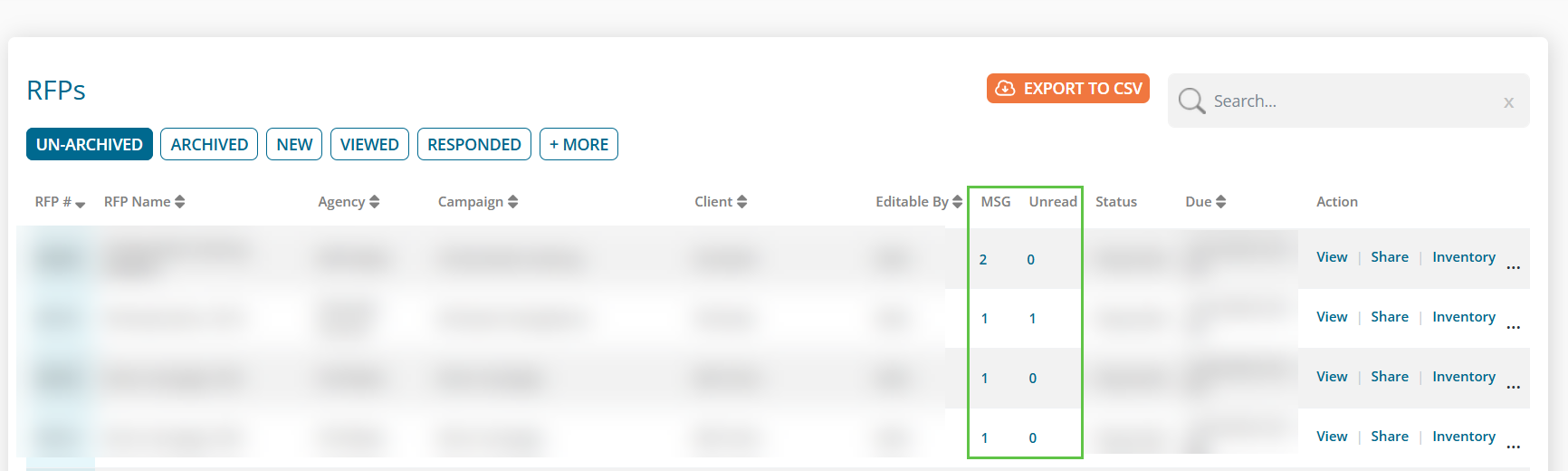
All notes and updates regarding the Hold Request are delivered in DOmedia notification emails and stored in the RFP Dashboard Messages.