Buyer: What is the Activate Button?
The activate button is a revolutionary new tool changing the way OOH media is bought and sold. This industry-first tool allows users to create plans that score highest for target audiences and activate them seamlessly. When a plan is activated, the tool determines the best way to buy the inventory (e.g contract via real-time availability, issue RFPs, draft contracts and buy programmatically), streamlining everyday processes for a quicker and smoother OOH buying experience.
Here’s how to get started:
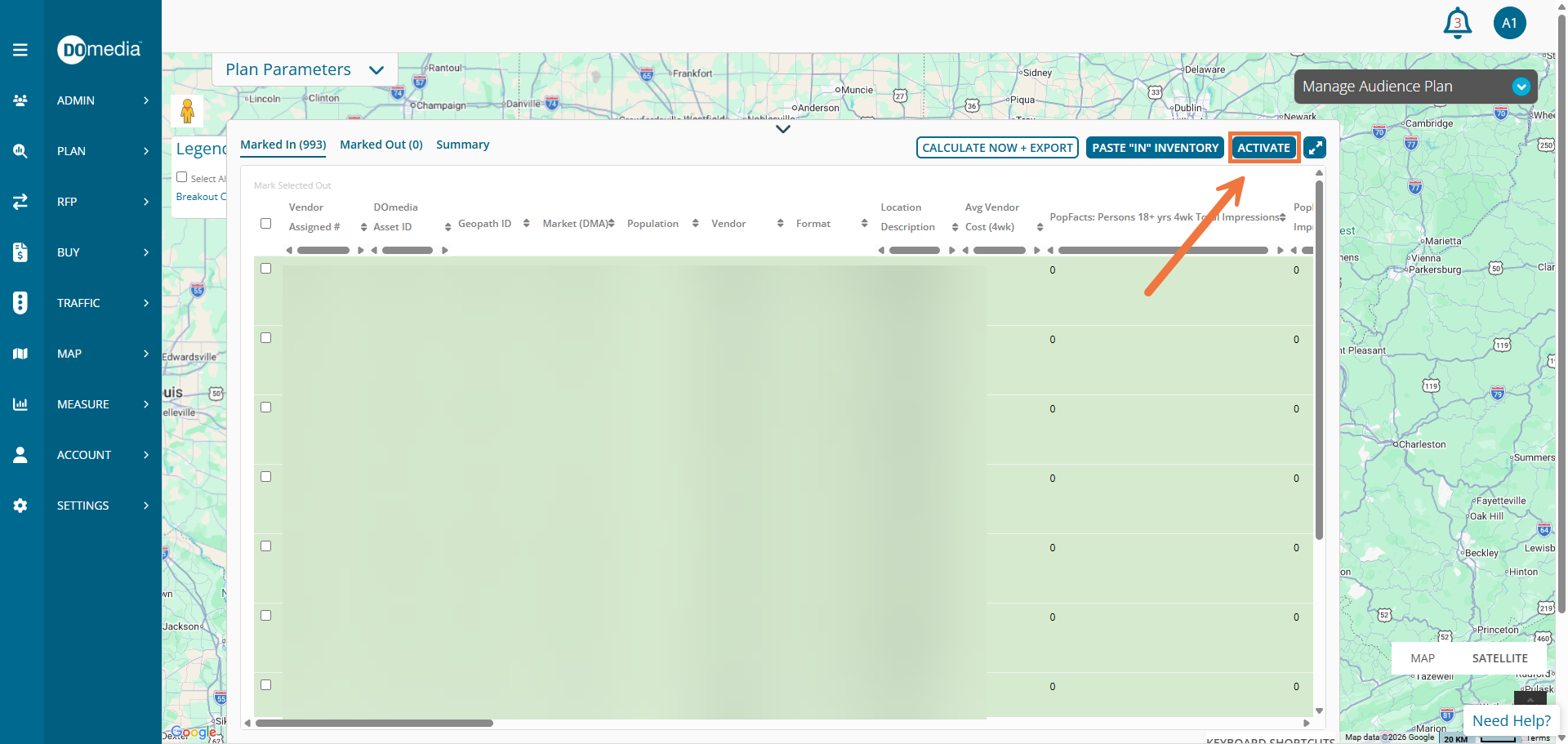
Once an audience plan has been generated, the activate button is located at the top right corner of the Inventory Details section.
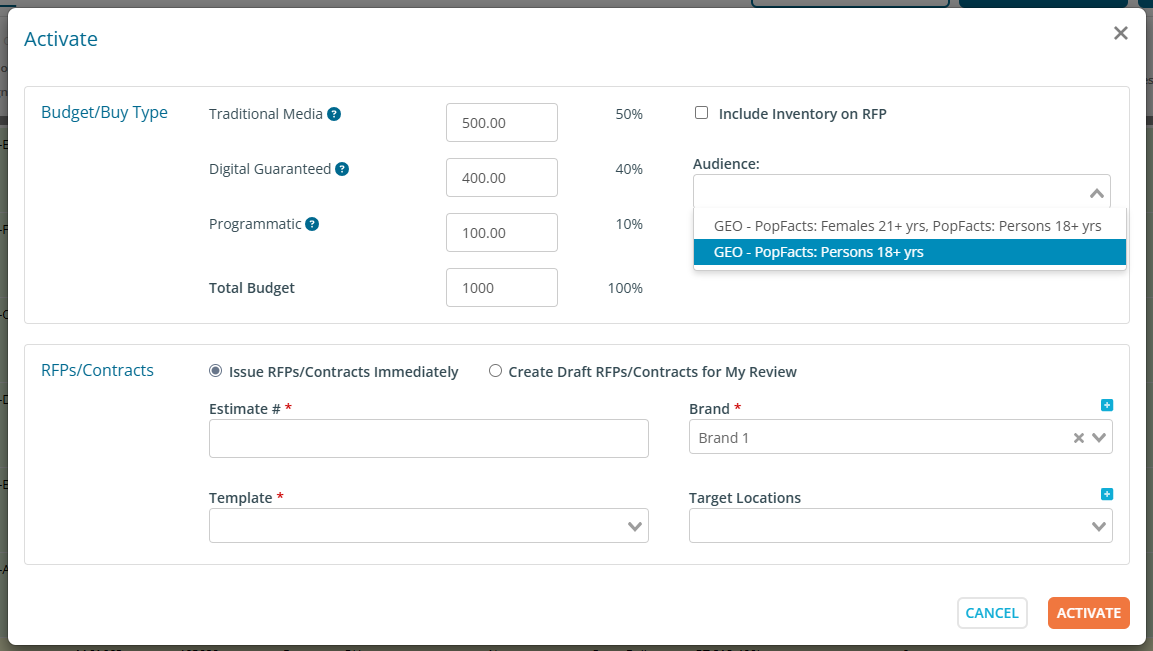
Clicking the blue “Activate” button opens a pop-up with options to:
- Adjust your budget by making changes to how much money is allocated to Traditional Media, Digital Guaranteed, or Programmatic.
- If a budget was entered earlier in the plan, it will be automatically broken out into a 50/40/10 split. This can be adjusted if needed.
- Choose to include the inventory from the audience plan in the RFP.
- Select which audience you would like to activate (if you selected multiple for the plan)
- Select if you’d like to issue RFPs/Contracts immediately or create drafts.
The Estimate #, Brand, and Template fields will also need to be filled out in order to activate the plan. This information will be prefilled from the campaign if the information is present.
Please note that you may also be required to include a Target Location List if the RFP Template selected includes columns that require one. You can select a pre-made list from the dropdown, or create a new one by clicking the blue plus button above the picklist.
Once you have made all your selections, click activate.
You will be able to view the RFPs and contracts that were created by clicking Activated Details.
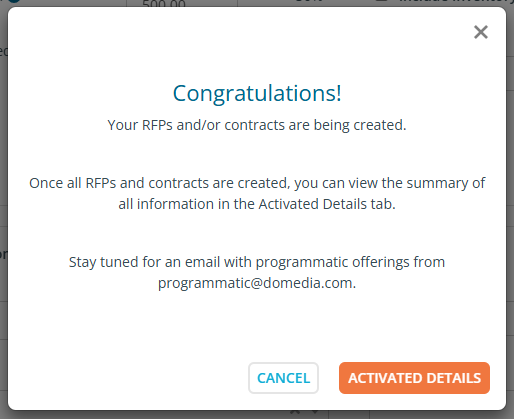
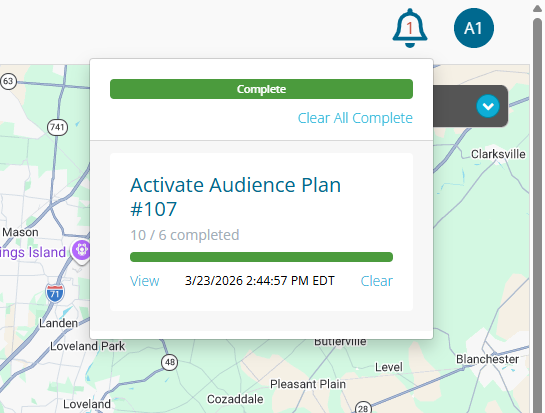
You will be able to track the progress of your activated details from the task manager in the top right hand corner. Click the bell to open it up.
When viewing your audience plan, you can also access the activated details in the Inventory Details tab.
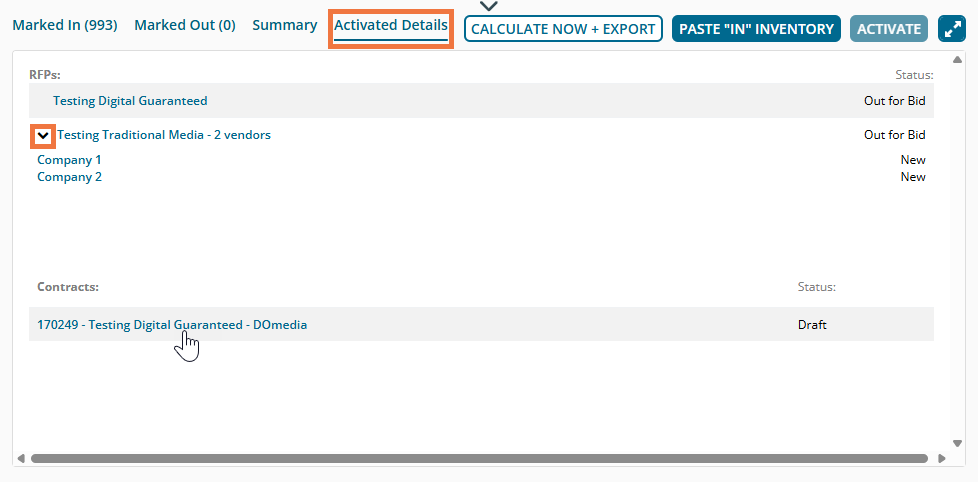
Clicking on the RFP/Contract titles will send you to the respective dashboards, filtered to the RFP/Contract created. If you click the arrow in the line for Traditional Media, you will be able to open the individual vendor proposals. Clicking on the vendor name will take you to the compile grid for that proposal. You can see the status of the RFP, individual vendor proposals, and Contracts in the Status column as well.
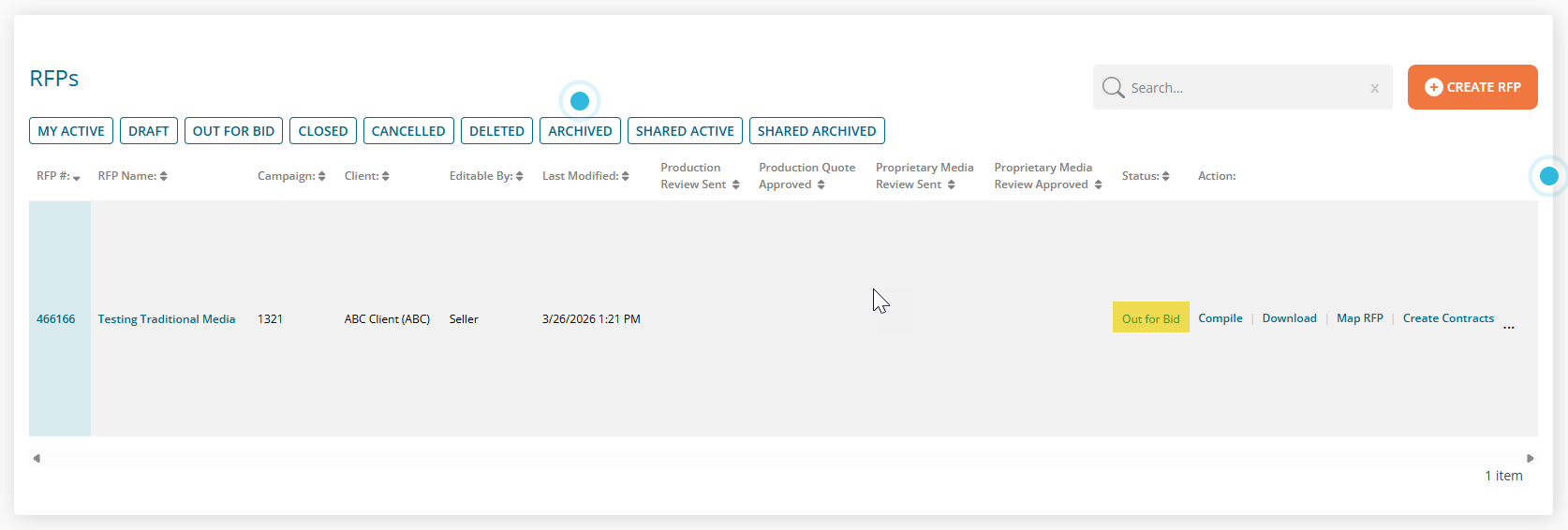
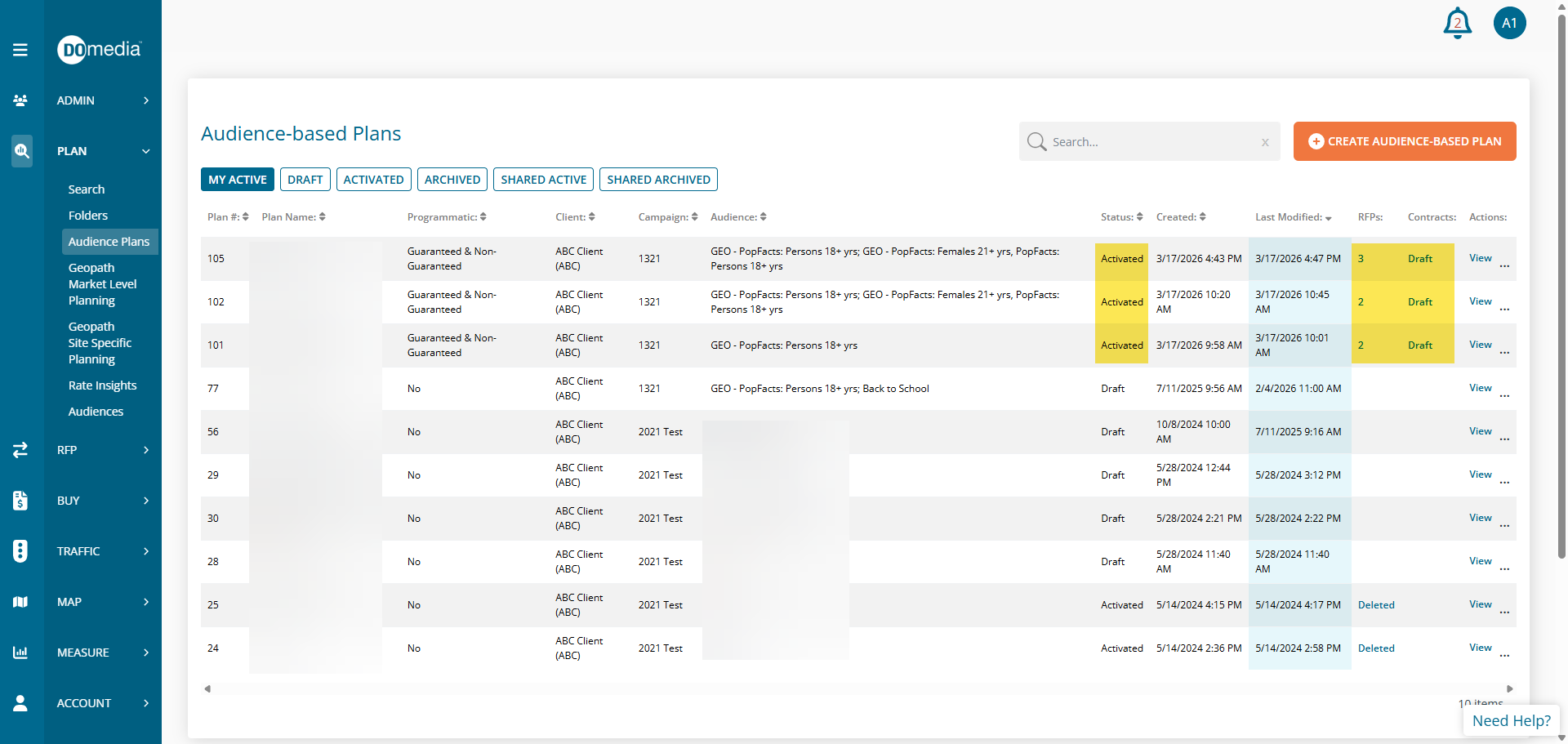
You can also track whether an audience plan has been activated or is still a draft from the Audience Plan Dashboard. Clicking on the number below the “RFP” column and the status below the “Contracts” column will send you to the respective filtered dashboards.
A member from the DOmedia team will reach out to you after the plan has been activated to provide details regarding Digital Guaranteed and Programmatic media.
Looking for more information on creating an audience plan? Check out this support article here.