
RFP Excel File Branding
RFP Excel sheet downloads have the option to be formatted for the agency or a specific client. This includes logos, fonts, and color schemes.
How to set up company branding
To set up company branding, access the Company Information page under the Account tab in the navigation bar.
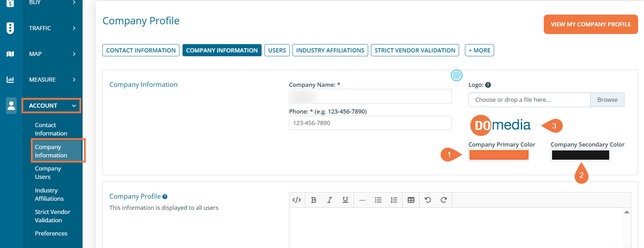
You will need to ensure your company has its logo uploaded to DOmedia. A primary and secondary color will also need to be selected.
How to set up client branding
To set up client branding, navigate to the Client dashboard under the Settings tab in the navigation bar. From the Client dashboard, you can create a new client or edit one that has already been made.
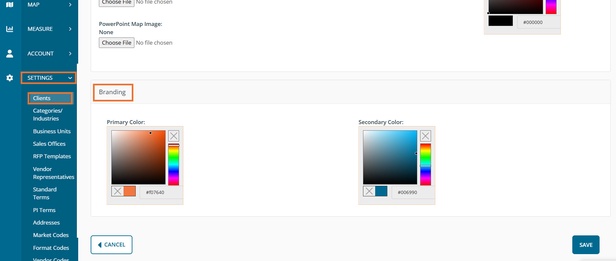
A primary and secondary color will need to be selected for each client who desires a branded Excel download. Click Save to save the color selections.
To learn more about creating and managing clients, please refer to the support article below.
Buyer: How do I create and manage my clients (Client Management)?
How to download a branded RFP
To download a branded RFP, select 'RFP Client Excel Files' and select desired color options.
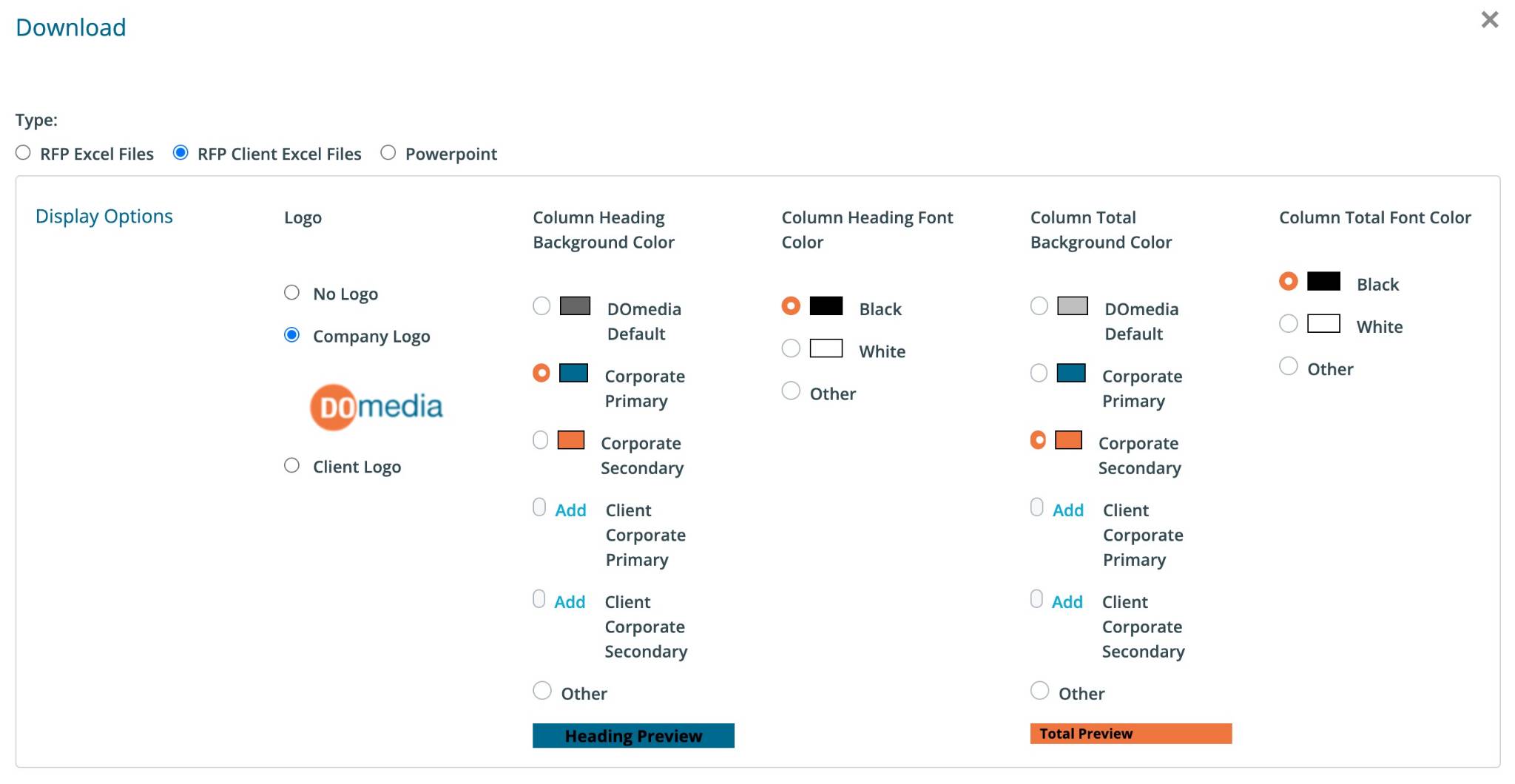
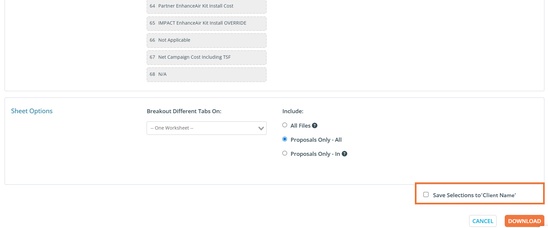
After making your logo and color choices, the RFP can be downloaded like normal. Your download choices can also be saved to the client from the download page by checking the 'Save Selections' box.
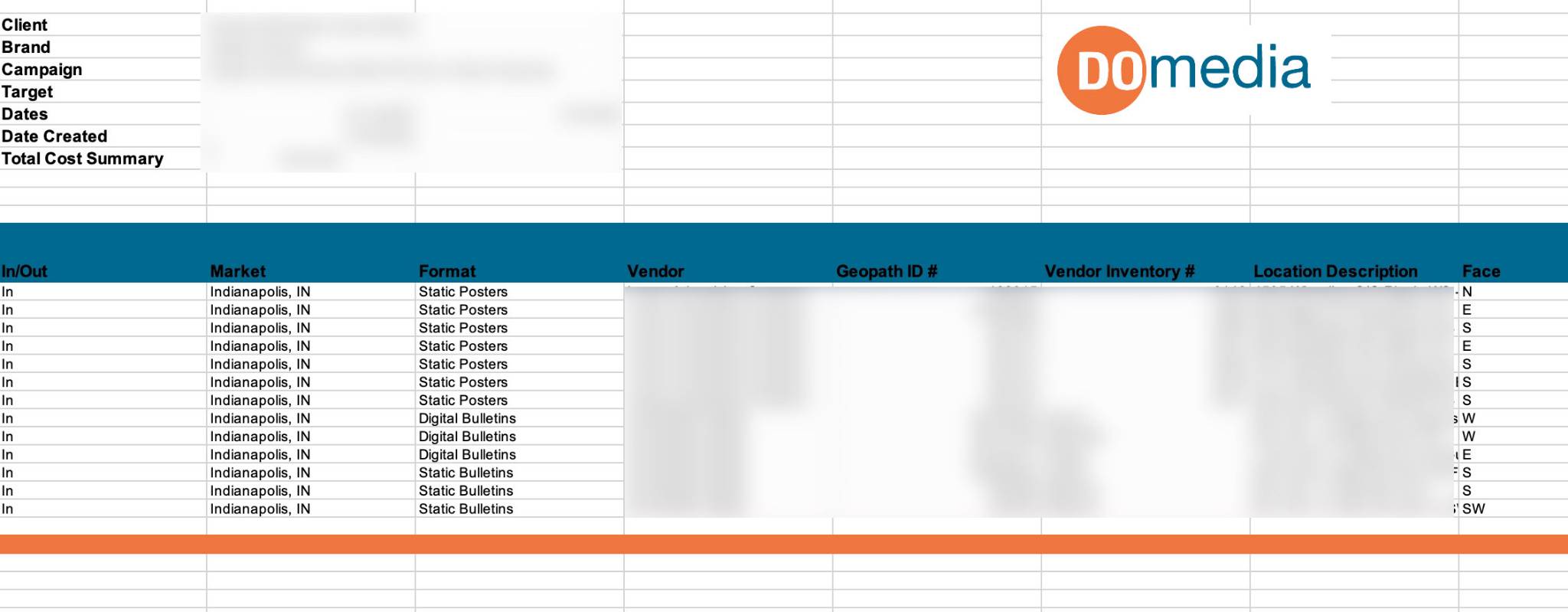
In the branded Excel download, the company logo and selected colors will be visible.
If you do not see these options in your account and wish to add them, please send your request to agencysupport@domedia.com