
Buyer: Placing Inventory Holds
How to use Holds on RFP
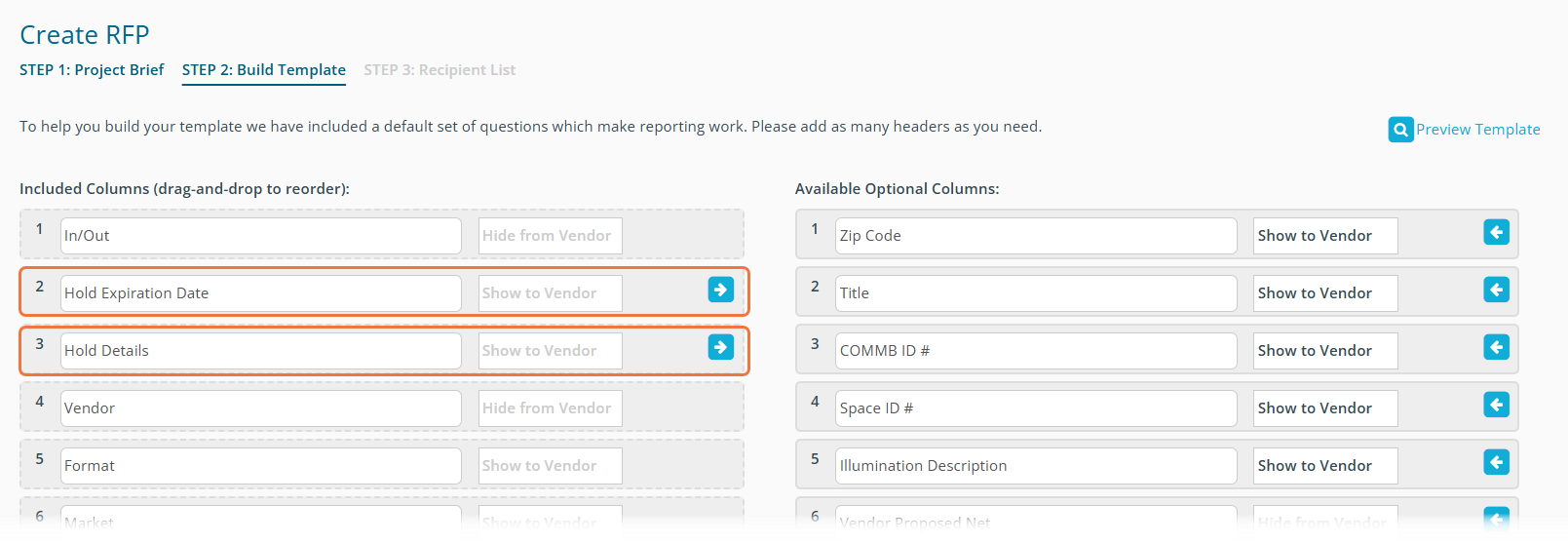
On Create RFP STEP 2: Build Template, you will see the Hold Expiration Date column included in the template. This column cannot be removed as it is necessary for the Holds function.
There is an optional column available for Hold Details. Add this to your template if you wish to see additional information pertaining to the hold. For optimal use, pair both columns and order Hold Details after Hold Expiration Date.
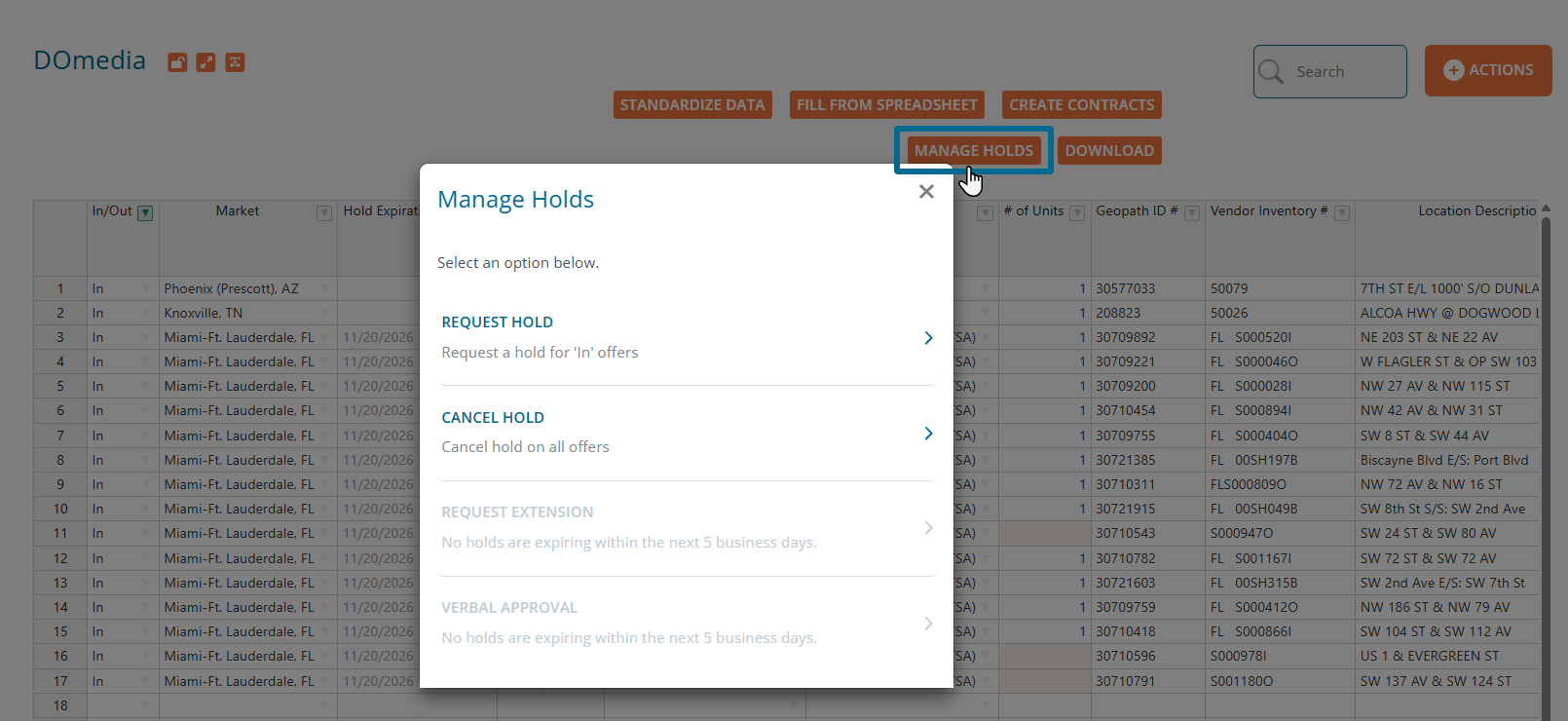
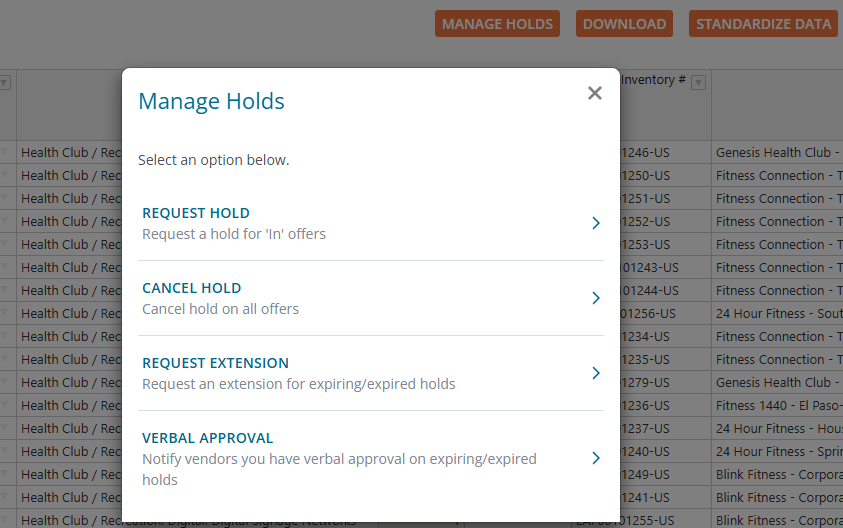
Once your RFP has been created and issued to vendors, find the Manage Holds button within the RFP Compile Grid. Clicking this button opens a pop-up window where you can request holds from vendors.
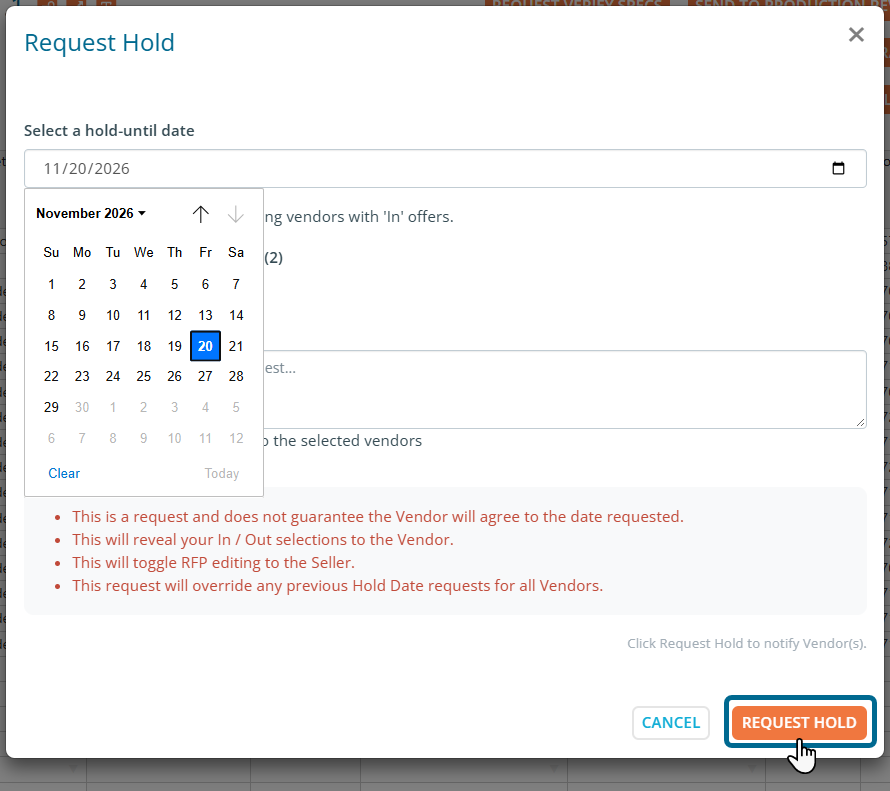
Enter your desired hold date and select the vendors for which you would like to request the hold. Note, hold requests will not be sent for any assets marked as 'Out'.
Once you have made your selections, click Request Hold to send your request to the vendor.
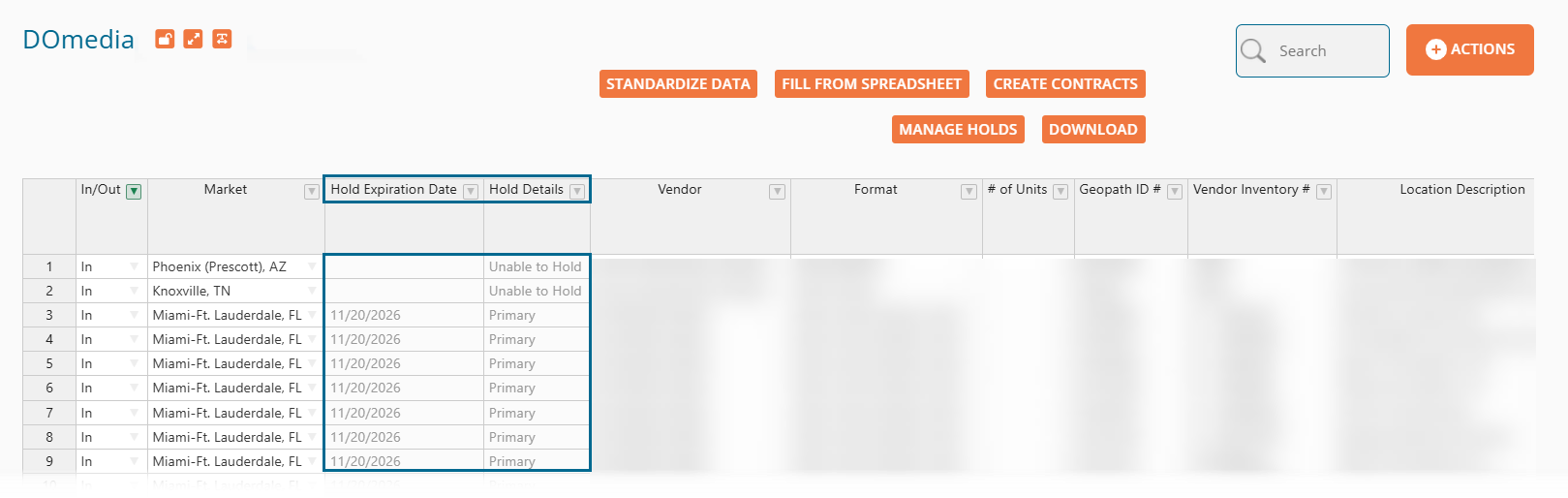
Vendors will be notified of your hold request via email. They can choose to accept your requested dates, enter a new date, or deny the request. Once the vendor has submitted their response, you will see the dates appear in the Holds Expiration Date column and additional information in the Hold Details column.
Managing Proposal Holds
You will receive reminder email 5, 2, and 1 day before your hold is about to expire. Once your hold is 5 days away from expiring, you will see a yellow expiration banner at the top of your RFP Compile Grid. You will have new options to choose from in the Manage Holds pop-up.

Once you are 5 days away from expiration, you can choose to Cancel Hold, Request Extension, or notify the vendor that you have received verbal approval from your client by changing the status to Verbal Approval.
Contracts can be made at any point while a hold is in place if you are ready to move forward.