
Buyer: How do I issue a contract internally?
Issuing a contract internally allows you to mark a contract as issued without sending it to the seller. This is helpful for agencies that manage contracts outside of DOmedia but still need the contract marked as issued in order to create Posting Instructions for a campaign.
When a contract is issued internally, the system records the issue date and updates the contract status, but no notification is sent to the seller.
Issue a Contract Internally
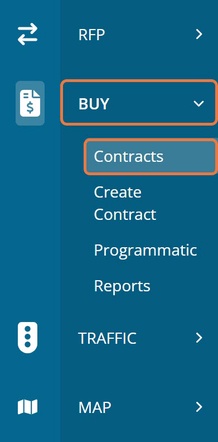
First, navigate to 'Contracts' by selecting 'Buy' from the left-hand menu and clicking Contracts.
From the Contract List page, locate the contract you want to issue internally. Under the Action column, click View.
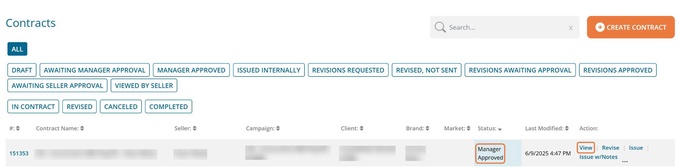
The View Contract page will open and display the details of the selected contract.
In the top-right corner of the page, click the + Actions dropdown menu. From the dropdown menu, click Issue Contract Internally.
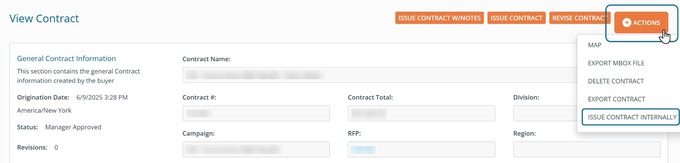
After clicking this option, the system will:
- Update the contract status to Issued Internally
- Record the Issue Date
- Add an Issued Internally event to the Contract History
The contract will now be marked as issued internally, allowing you to continue working within DOmedia (such as creating Posting Instructions) without sending the contract to the seller.
What Happens After a Contract Is Issued Internally
Once a contract has been issued internally:
- The contract status will display as Issued Internally
- The contract will appear under the Issued Internally tab in the contract list
- You can still Issue the Contract to the Seller later if needed
- You can also Revise, Duplicate, or Delete the contract
Important Notes
- The Issue Contract Internally option is only available when a contract is in Manager Approved status.
- This option appears in the Actions menu on the View Contract page.
- Users must have the Issue Contract Internally permission enabled to see this option.
- Issuing a contract internally does not send the contract to the seller or trigger billing system actions.