Buyer: Printer Order Creation + Status
Order Status (for agency users with an in-house production team):
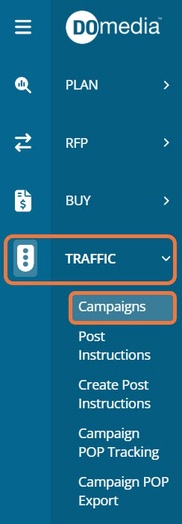
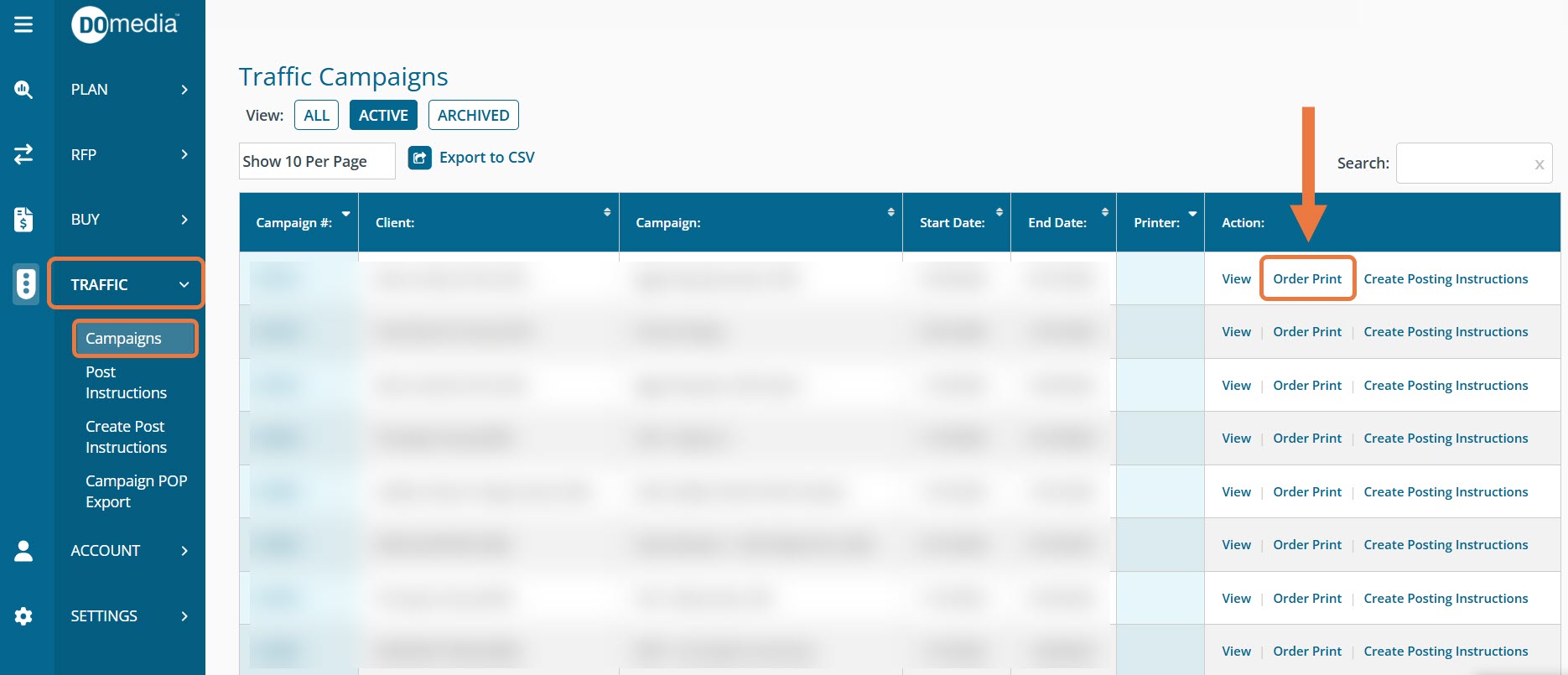
To check on the status of an order, click "Traffic" then "Campaigns" on the left side menu.
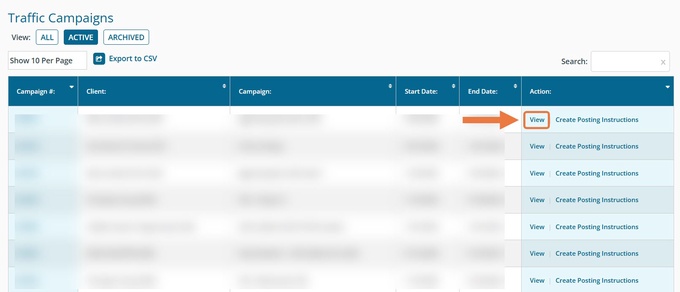
Click "View" next to the desired Campaign.
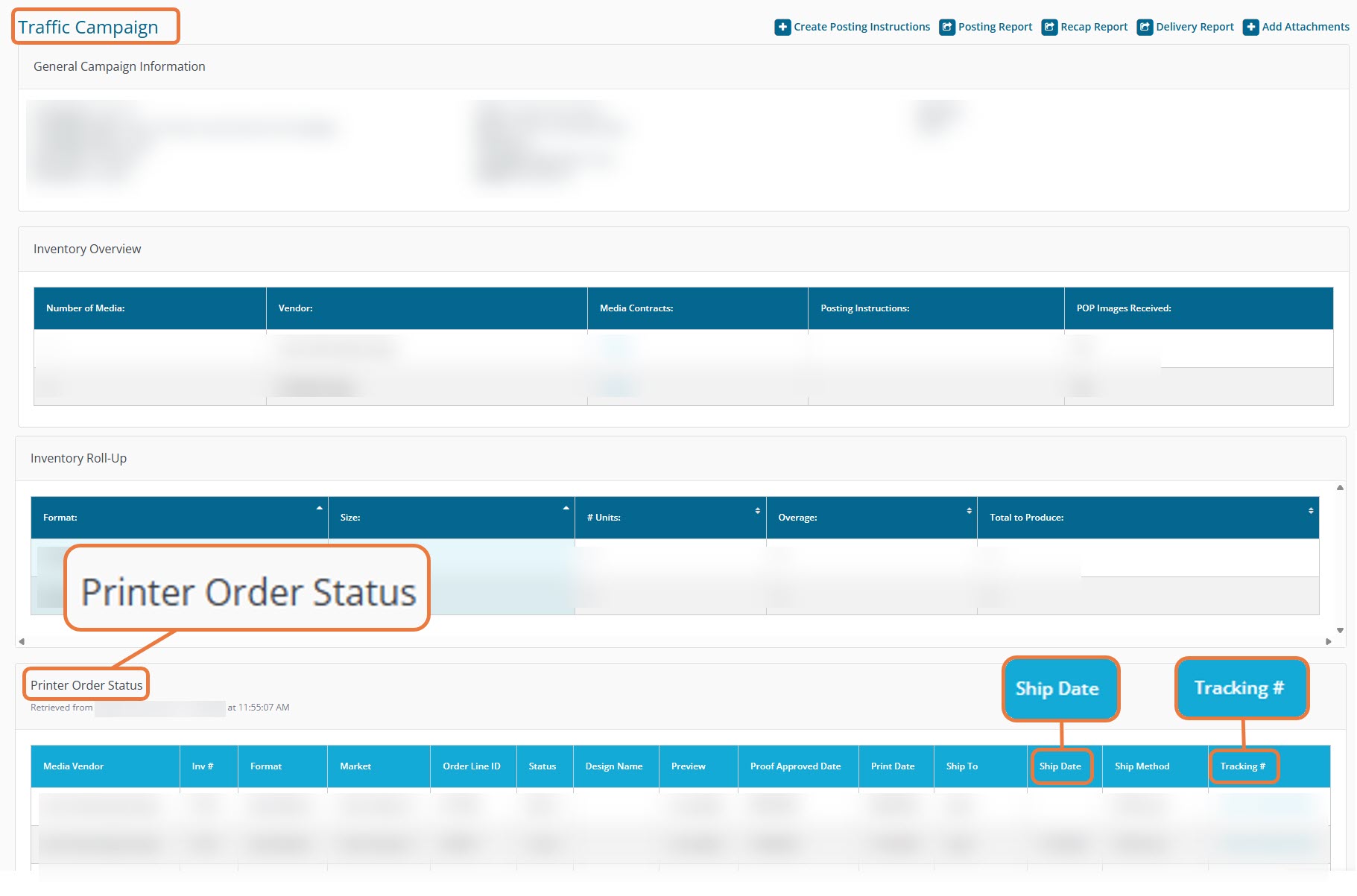
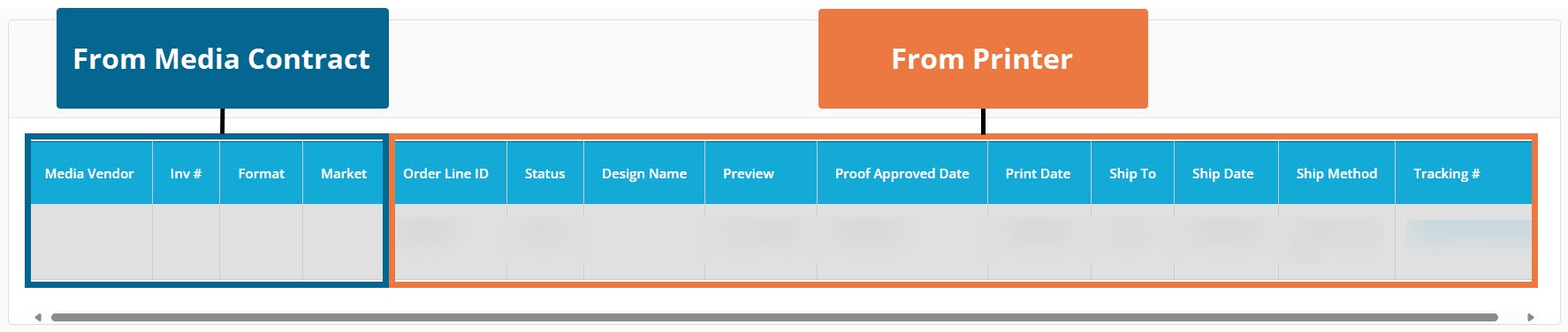
When orders have been created by the production team, details are displayed in the Printer Order Status section.
Note: the Ship Date and Tracking # will update automatically once the information becomes available.
How does DOmedia match contracts to printer orders?
The system will lookup affiliated contracts within the campaign to locate a media contract match. For contracted media rows to link successfully to printer orders, there are 2 data points that must align with the contracted inventory:
- The Inventory # on the DOmedia contract
- The contracted Media Seller within the shipping information provided by the printer
Both of these are necessary in order for the Printer Order Status section to be fully displayed.
The first 4 columns are filled out automatically when we find a media contract in the campaign to link to the printer order. The remaining columns pull from print partners, with the Ship Date and Tracking # to populate once it is sent from the printer.
Order Creation (available only to production users):
To create a new order, navigate to "Traffic" and select "Campaigns" on the left side menu. Locate the desired Campaign and click "Order Print" under the Action column.
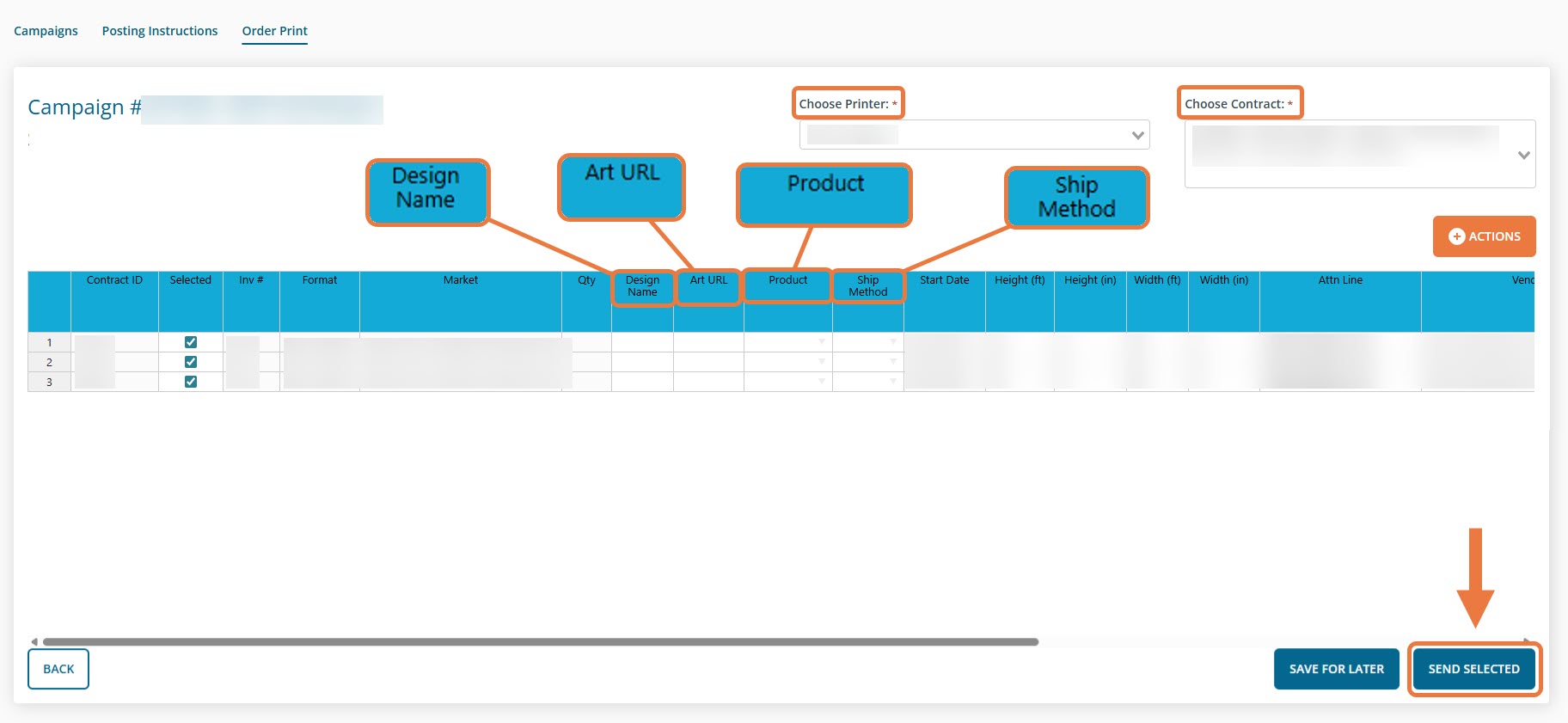
Select the desired Printer, Contract, and Rows, and enter the required information including Design Name, Art URL, Product, and Ship Method. Once you've filled in all necessary details, click "Send Selected."
The order will now be sent directly to the chosen printer and can be tracked by accessing the Traffic Campaign page.
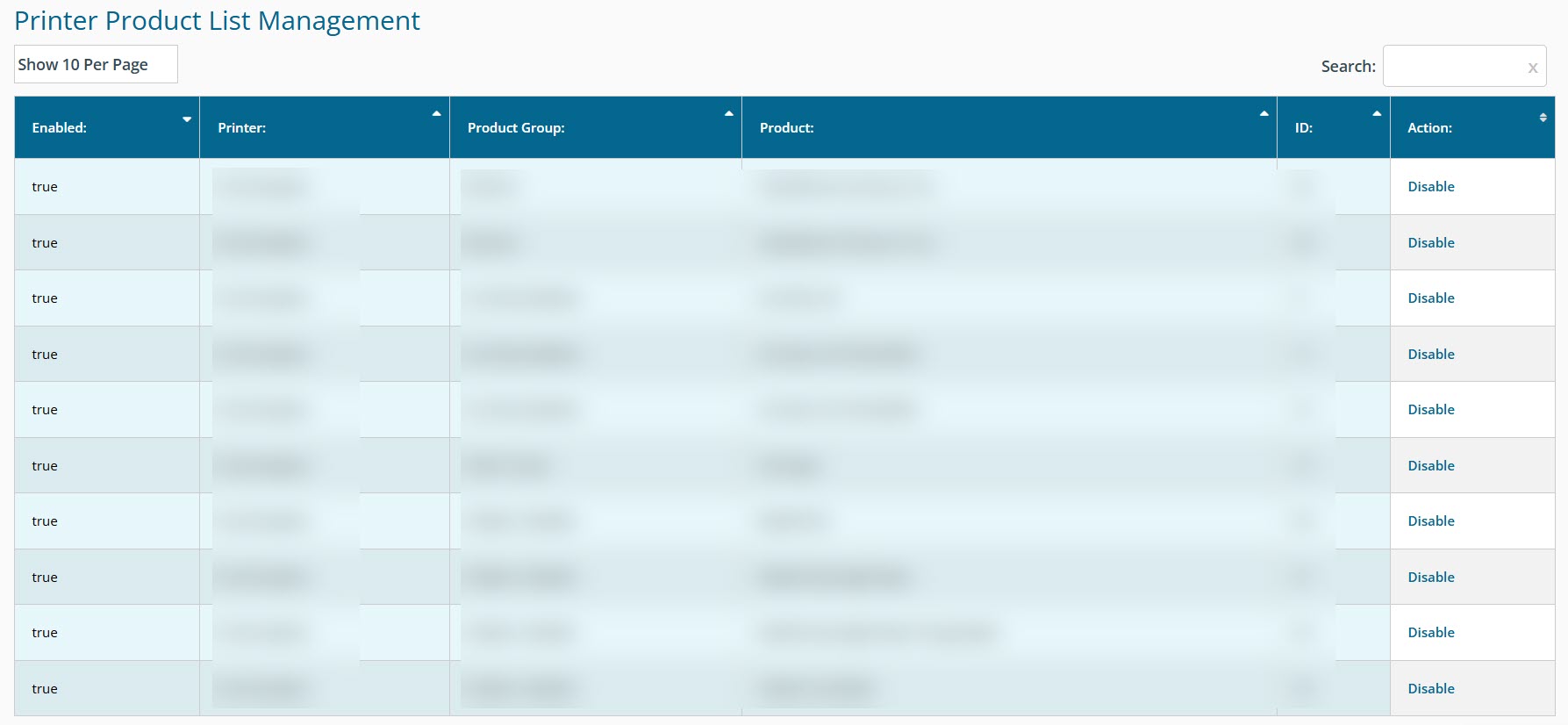
Printer Product List Management (available only to production users):
To manage the list of products, click on "Settings" then "Printer Products" on the left-hand side menu.
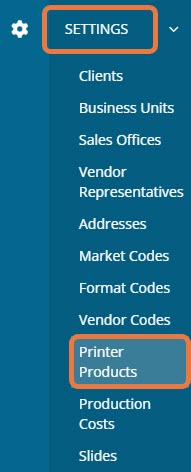
From this page, you can easily enable or disable products associated with your print partners.
FAQs
- How do printer orders get assigned to assets in DOmedia?
- Domedia will assign a printer order to an asset based on Display ID.
- How do printer orders get assigned to assets in DOmedia is DIsplay ID is not filled in?
- If Display ID is not filled in, DOmedia will assign a printer order to an asset based on the Creative Design Name. The Creative Design Name will be matched to the first unit number we can find from your Production Contract.
- What if there are multiple unit numbers in the Creative Design Name?
- If there are multiple unit numbers included in the Creative Design Name, then DOmedia will assign those lines to the unit number listed first.